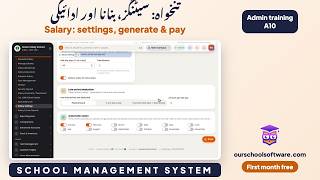
This video is 2 minutes long and shows expenses on the real screens of the software, step by step, with Urdu and English captions. It is for principals, admins and office staff. Below are the same steps in writing, so you can follow along at your own pace or come back to a step later.
In this video
- The month's expenses
- Add an expense
- Edit or delete
- Categories
- Reports
Step by step
1. The month's expenses
- Expense Management › Add / Manage Expense: all of this month's expenses
- Switch months at the top; each month's total shows beside it
2. Add an expense
- "Add expense": category, title, amount, date and method (cash, bank or card)
- Attach the bill picture or take it with the phone camera: it stays as proof
- It is added to today's balance sheet and the dashboard by itself
3. Edit or delete
- Fix a mistake with the pencil; a deleted expense goes to the recycle bin
4. Categories
- "Expense Categories": make your own, like electricity, fuel, repairs
5. Reports
- "Detailed Expense Report": every expense of the month, with totals by category
- "Income & Expense Report": income against expenses, and the profit
The names and numbers in the video are from a demo school and are made up.