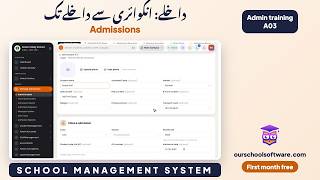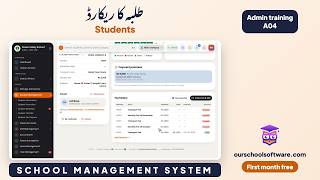
This video is 2 minutes long and shows getting around the school software on the real screens of the software, step by step, with Urdu and English captions. It is for principals, admins and office staff. Below are the same steps in writing, so you can follow along at your own pace or come back to a step later.
In this video
- The menu
- Search & quick actions
- Campus, bell & look
- Today's activity
- Your account
Step by step
1. The menu
- The menu on the left: grouped by area, each with its pages inside
- Tabs at the top: the pages you opened, one click apart; "+" opens a new tab
2. Search & quick actions
- Search at the top (or Ctrl + K): find a student, parent, staff member or any page
- Act straight from the result: take the fee, see attendance or print the voucher
3. Campus, bell & look
- The campus button changes campus. "Online" shows the internet status
- The bell: new alerts, like a parent complaint or a leave request
- Colours and dark mode: as you like
4. Today's activity
- "Today's Activity": what each staff member did today: what was added, changed or deleted
5. Your account
- Top right, your account: profile, password, two-step sign-in and sign out
6. Help
- The help button in the corner: ask a question, get the answer and the right video at once
The names and numbers in the video are from a demo school and are made up.